Backups & migration
Copy objects between buckets on a schedule, and read run results.
Scheduling jobs
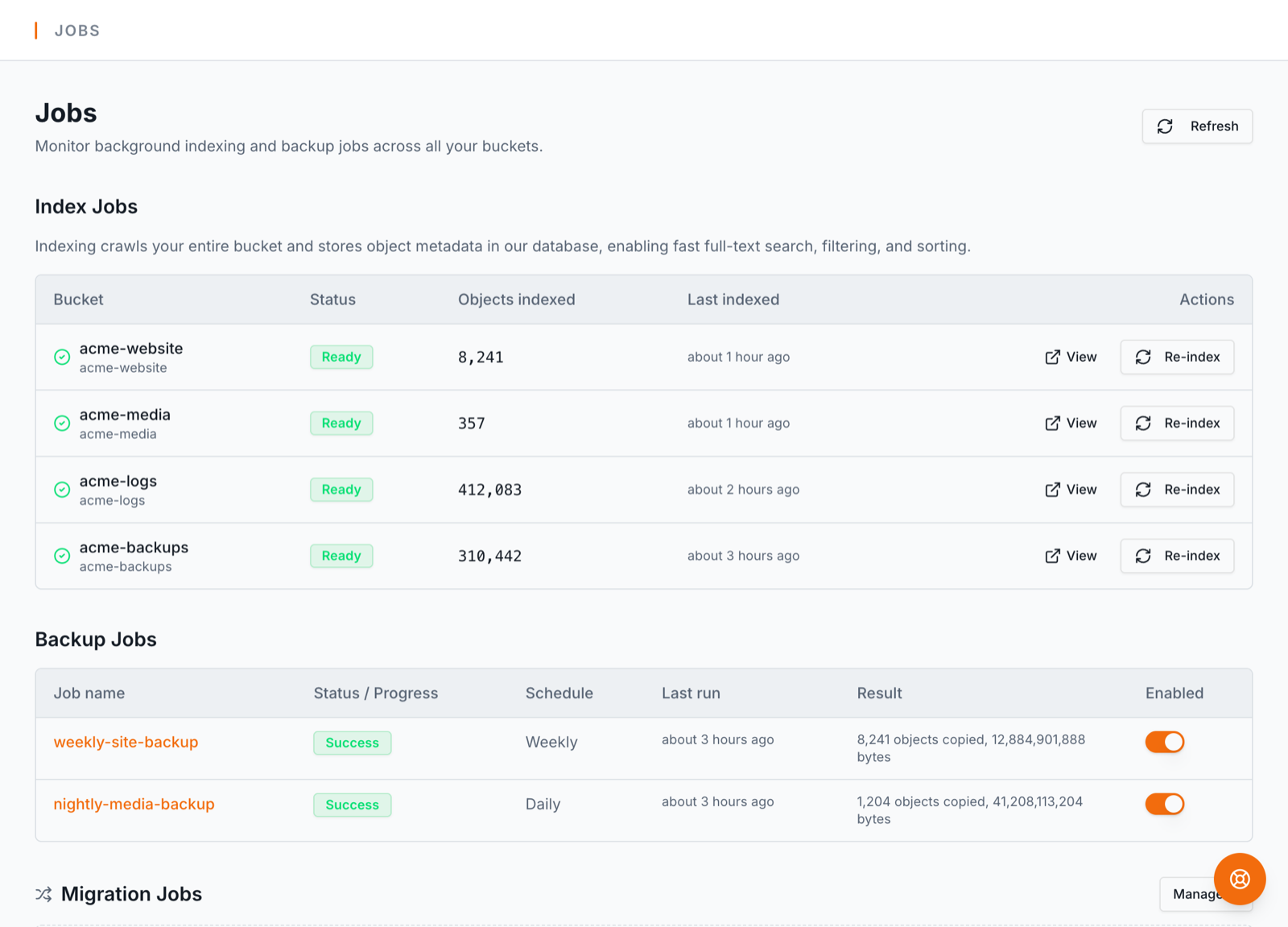
Backup jobs copy objects between buckets — the whole bucket, or just one folder of it, which makes it a partial backup (see Partial backups) — and run manually or on an hourly, daily, or weekly schedule. Jobs run on dedicated worker infrastructure and automatically retry transient errors.
Migration jobs move data between places BucketPilot doesn't host: from one of your own servers (over SSH/SFTP) or from Azure Blob Storage into a bucket. On the Business plan they can also write to a server — either server-to-server or bucket → server, which pulls an offline copy of a bucket down to your own machine (an optional key prefix limits what's copied). For Azure, add an Azure credential on the Credentials page and give the source as container/optional/prefix.
Writing to a server creates missing folders, writes each file to a temporary name and renames it into place (so an interrupted run never leaves a half-written file), and re-copies a file only when its size or timestamp differs.
Setting a server up — including the Windows steps that catch people out — is on Connecting your own server.
The first time BucketPilot connects to a server it remembers that server's SSH host key. If the key ever changes, jobs stop with an error instead of connecting — that's what an impersonated server looks like. Re-trust it from the Credentials page if the change was expected (a rebuild, for example).
Each run copies several objects in parallel — 4 threads on Pro, 8 on Business. Files stream straight through, so size isn't a limit.
Partial backups — a folder is not the bucket
A backup job with a source folder (a prefix) copies only that folder. BucketPilot labels it a Partial backup everywhere it appears: on the Backups page and the job's page, on the bucket and the bucket list, in Analytics, in notification emails, in the API and the CLI. A job with no source folder backs up the whole bucket.
Backing up a folder is not the same as backing up the bucket. Every other folder is not copied — and neither are folders that appear later: a new folder from an upload in the app, a resync, a re-index or a re-walk of a drive is outside the job until a backup covers it. A bucket covered only by partial backups is not shown as protected or backed up the way a whole-bucket backup is.
What BucketPilot does about it:
- •Lists what is left out. The bucket's Backups tab, the bucket page header and the Analytics Protection card show "3 folders are not backed up" with the folders named. It looks at every level: with a backup of
photos/2024/, the gap isphotos/2023/— not all ofphotos/. - •Tells you when a new folder appears. The first check of a bucket is the baseline (folders already there are listed, not announced). After that, each folder that appears outside every backup produces a notification in the bell, and an email under the same preference as failed backups. Check now on the bucket's Backups tab re-checks straight away; otherwise it happens after each index run or re-walk and at least hourly.
- •Only shows what you may read. A folder you have no read access to is counted, never named.
The same rule applies to a mirror with a folder set, and to a migration that copies one folder of a drive or bucket. To cover everything, create a backup with the source folder left empty — or add a job for each remaining folder.
Limits. Folders are known from the bucket's index, so a bucket that was never indexed has no folder list to check, and an empty folder that no index run has seen may not be listed yet. Files sitting directly in the bucket's root (outside any folder) are covered only by a whole-bucket backup.
Mirror or backup — which one you want
There are two ways to keep a second copy of a bucket, and they answer different questions. The one that decides it: if someone deletes a file by mistake, should it disappear from the copy too?
- •Yes — I want an identical live copy. That's a Mirror. AWS's own replication copies each new object within seconds, and AWS moves the data itself, so nothing runs on your account. It protects you from losing a region or a bucket.
- •No — I want to get it back. That's a Backup. It runs on your schedule and never deletes anything at the destination, so a file removed from the source is still sitting in the copy when you go looking for it. It protects you from mistakes, bad scripts, and ransomware.
| Mirror | Backup | |
|---|---|---|
| Copies | continuously, within seconds | on your schedule |
| A file deleted at the source | gone from the copy | kept |
| Works with | Amazon S3 → Amazon S3 only | S3, R2, GCS, Azure, SFTP |
| Who moves the data | AWS | BucketPilot |
| Protects against | losing a region or bucket | mistakes, bad scripts, ransomware |
Most teams end up with both — a mirror so a copy is always live, and a backup so a mistake can be undone. They aren't alternatives.
A mirror needs versioning switched on for both buckets (AWS refuses the configuration otherwise) and both must be Amazon S3. When a pair doesn't qualify, BucketPilot says exactly which condition failed rather than hiding the option.
One thing to know: replication only covers objects written after you turn it on. Everything already in the bucket is not copied by the mirror — run a one-off backup to bring those across.
When AWS on its own is the better answer: if you only want S3-to-S3 disaster recovery, you control both buckets, and versioning is already on, AWS's native replication does that job well and you don't need us in the middle of it. Where BucketPilot earns its place is everything replication can't do — SFTP, Azure, R2, buckets you don't control, versioning you don't want — and everything it isn't: a copy you can actually restore from after a mistake.
Restoring from a backup
Open the backup job and choose Restore. Objects are copied from the backup back to the original bucket — the opposite direction to a normal run.
A restore is deliberately cautious:
- •Nothing is ever deleted from the original bucket.
- •Files that are already there are left untouched, so a newer version is never replaced by an older copy.
- •You can restore a single folder rather than the whole bucket, which is usually what you want and finishes far sooner.
If you genuinely want the bucket rolled back to the backup's contents, tick Also replace files that already exist — that one can replace newer work with an older copy, so it's off by default.
Verify the copy
A backup run decides what to copy by comparing two listings — size and ETag per file. That answers "is something missing or changed?", not "is what arrived the same as what left?". Verify copy (on a backup job's card, when it isn't running) answers the second question by looking at the objects themselves.
It checks a sample — 50 objects at a time, not the whole backup, and offers Check the next 50 to keep going. For each object it uses the cheapest proof that can actually decide, and tells you which one it used:
- 1.Missing or a different size at the destination — no data is read.
- 2.A matching checksum (SHA-256) stored on both sides.
- 3.A matching MD5 ETag on both sides — only for plain uploads; a multipart or KMS-encrypted object's ETag is not an MD5, so it is never compared this way.
- 4.Both objects read in full and compared byte for byte, when nothing cheaper can decide. This uses data from each side, so a data budget (1 GiB by default, up to 5 GiB per check) limits it.
Two results are deliberately not counted as a match or a failure: Not checked (over the data budget, or the check ran out of time) and Couldn't be read (a refused or failing read, or an object that changed while it was being read). They are listed apart, so a clean-looking total never hides them.
It works when both ends are object storage — Amazon S3, Cloudflare R2, Google Cloud Storage or BucketPilot Cloud — and needs read access to both. A server or Azure end can't be compared this way.
Repair. When the check finds objects that are missing or different, a Repair panel offers to put them right. Add N missing copies only what is absent at the destination — it never touches an object that is already there. Objects that are there but differ are left alone unless you tick Also replace the ones that differ, because replacing overwrites what is at the destination with the source's version (a bucket without versioning keeps nothing of the old one). Every object is checked again just before it is written — a result from a few minutes ago is never trusted, so something fixed in the meantime is not touched — and checked again afterwards: only an object that now matches is reported Repaired. One that still differs says so. Repair needs write access to the destination, like the job itself, and an object that could not be read or compared is never "repaired" on a guess.
Re-running a job
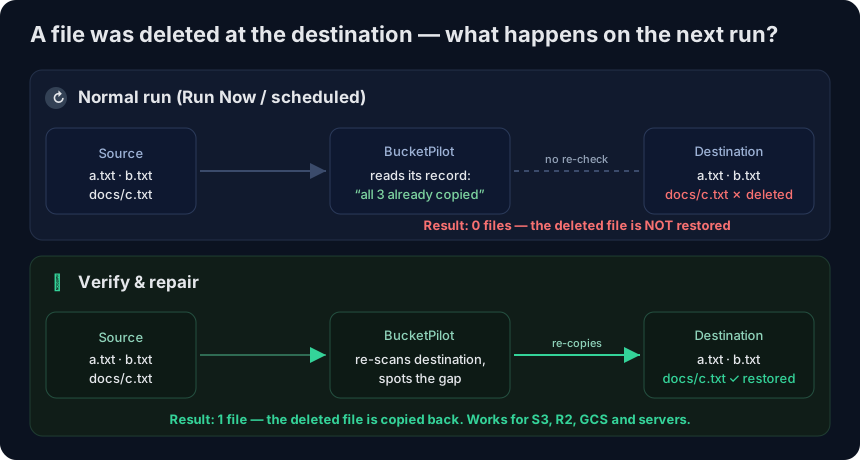
Re-running a job is safe and cheap. BucketPilot keeps a record of what it has already copied, so a normal Run Now (and every scheduled run) copies only what's new or changed at the source — an unchanged re-run moves nothing and finishes almost instantly. It never deletes anything at the destination: a sync only ever adds.
Because a normal run trusts that record and doesn't re-list the destination, it won't notice a file that was removed or changed at the destination itself — that file still counts as "copied", so the run reports 0 files and the gap stays. That's the fast path working as designed, not a failure.
Verify & repair
Verify & repair is the button for exactly that case — something changed at the destination and you want it made whole again. It runs a full re-scan of the destination and re-copies anything that's missing or different there, then rebuilds its record so ordinary runs are fast again. It's slower than a normal run (it re-checks the whole destination), so it's a deliberate action rather than the default.
Use it when you've:
- •deleted files or a folder at the destination and want them back,
- •had files changed or corrupted at the destination,
- •or just want to confirm the destination is a faithful copy of the source.
It works for every destination — an Amazon S3, Cloudflare R2, or Google Cloud Storage bucket, or a server (SSH/SFTP) — and for every source (a bucket, a server, or Azure). The destination is only ever added to, never deleted from.
Example. You run a nightly SFTP-server → S3 migration. Someone empties an invoices/ prefix in the S3 bucket by mistake. Your next scheduled run reports 0 files — the record still says those objects are copied. Open the job, click Verify & repair, confirm, and the run re-lists the bucket, sees invoices/ is gone, and copies just those objects back from the server — everything else is left untouched.
Find it on the job's detail page, next to Run Now (migration jobs).
Reading run results
A finished run can still list per-object errors in its log: the run shows success if the run itself completed, so check the run log for any skipped objects. Failed means the run died as a whole.
Most job failures are permissions — the credential can read the source but not write the destination (or the reverse). The error text in the job log names the exact AWS operation that was denied, which is usually the fastest way to spot the fix.