Connecting your AWS account
The two credential types, adding buckets, and fixing connection errors.
Credential types
BucketPilot manages buckets on Amazon S3 on every paid plan. Multi-cloud — Cloudflare R2 and Google Cloud Storage buckets, and Azure Blob Storage as a migration source — is a Business feature. R2 and GCS both speak the S3 API, so they work the same way once connected; Azure containers can be copied out of (a migration source) but not managed as buckets.
Some features are AWS-only because they're AWS services with no equivalent elsewhere: inventory-based indexing of very large buckets, lifecycle rules, bucket policies, storage classes, and cost estimates. Non-AWS buckets simply don't show those.
You connect AWS with a credential, and there are two kinds:
- •CloudFormation one-click role (recommended) — from the Credentials page you deploy a small CloudFormation stack that creates a cross-account IAM role BucketPilot assumes with a unique ExternalId. No long-lived keys ever leave your AWS account, and you can revoke access any time by deleting the stack.
- •Access keys — paste an IAM user's access key and secret. Simpler to set up, but the keys are stored (encrypted); the one-click role is more secure.
The S3 policy BucketPilot needs
Both kinds need the same S3 permissions — a role is only a different way of holding them. Here it is in full; the add-credential dialog shows the same JSON with a copy button.
{
  "Version": "2012-10-17",
  "Statement": [
    {
      "Sid": "DiscoverBuckets",
      "Effect": "Allow",
      "Action": [
        "s3:ListAllMyBuckets",
        "s3:GetBucketLocation"
      ],
      "Resource": "*"
    },
    {
      "Sid": "SizeEstimates",
      "Effect": "Allow",
      "Action": [
        "cloudwatch:GetMetricStatistics"
      ],
      "Resource": "*"
    },
    {
      "Sid": "LargeBucketInventory",
      "Effect": "Allow",
      "Action": [
        "s3:PutInventoryConfiguration",
        "s3:GetInventoryConfiguration"
      ],
      "Resource": "*"
    },
    {
      "Sid": "Mirroring",
      "Effect": "Allow",
      "Action": [
        "s3:PutReplicationConfiguration",
        "s3:GetReplicationConfiguration"
      ],
      "Resource": "*"
    },
    {
      "Sid": "BucketAndObjectAccess",
      "Effect": "Allow",
      "Action": [
        "s3:CreateBucket",
        "s3:ListBucket",
        "s3:GetBucketVersioning",
        "s3:PutBucketVersioning",
        "s3:GetBucketLocation",
        "s3:GetObject",
        "s3:PutObject",
        "s3:DeleteObject",
        "s3:GetObjectVersion",
        "s3:ListBucketVersions",
        "s3:DeleteObjectVersion",
        "s3:GetObjectTagging",
        "s3:PutObjectTagging",
        "s3:RestoreObject",
        "s3:GetBucketCORS",
        "s3:PutBucketCors",
        "s3:AbortMultipartUpload",
        "s3:ListBucketMultipartUploads",
        "s3:ListMultipartUploadParts",
        "s3:GetLifecycleConfiguration",
        "s3:PutLifecycleConfiguration",
        "s3:GetEncryptionConfiguration",
        "s3:PutEncryptionConfiguration",
        "s3:GetBucketObjectLockConfiguration",
        "s3:PutBucketObjectLockConfiguration",
        "s3:GetObjectRetention",
        "s3:PutObjectRetention",
        "s3:GetObjectLegalHold",
        "s3:PutObjectLegalHold",
        "s3:GetBucketPolicy",
        "s3:PutBucketPolicy",
        "s3:DeleteBucketPolicy"
      ],
      "Resource": [
        "arn:aws:s3:::*",
        "arn:aws:s3:::*/*"
      ]
    }
  ]
}
This is generated from the same constant the application enforces, so it cannot fall out of step with what BucketPilot actually asks for.
The list grows as BucketPilot gains features, and — this is the part that surprises people — an existing connection does not pick up the additions. A CloudFormation role's permissions are fixed when its stack is created, and an access-key policy is whatever you pasted on the day. See Keeping a connection's permissions current, which also tells you how to see what yours is missing.
Encryption and Object Lock. Since 2026-10-06 the policy includes the permissions behind the Security controls: s3:PutEncryptionConfiguration (change a bucket's default encryption), s3:PutBucketObjectLockConfiguration (create a bucket with Object Lock, and set its default retention), and s3:GetObjectRetention, s3:PutObjectRetention, s3:GetObjectLegalHold, s3:PutObjectLegalHold (lock one file, or place a legal hold on it). s3:BypassGovernanceRetention is deliberately not included — BucketPilot never offers to shorten or remove a lock. If you choose your own (customer-managed) KMS key as a bucket's default encryption, the connection also needs kms:GenerateDataKey and kms:Decrypt on that key (the key's own policy must allow it); they aren't in this policy because the key is yours to name. An AWS-managed key such as alias/aws/s3 needs nothing extra.
Read-only is not enough. Backups, uploads and lifecycle changes all write, so a read-only key connects and then fails partway through a job — which looks like a broken job rather than a missing permission. Administrator access is far more than we need, and a credential carrying it is labelled Admin in the credentials list so it is easy to find and replace later.
Building the role by hand? The CloudFormation stack attaches this policy for you, but the stack is a convenience and not a requirement. If you create the role yourself, it needs two things:
- 1.This same S3 policy attached to it.
- 2.A trust relationship allowing the AWS account whose access key you paste to assume it — that key is only used to call
sts:AssumeRole, never to reach your buckets directly.
Miss the second and the credential is refused at the moment you add it, naming the role: "BucketPilot could not assume arn:… AWS said: … is not authorized to perform: sts:AssumeRole".
One-click connect, step by step
- 1.On the Credentials page, click One-Click Connect. BucketPilot shows the AWS account it's about to connect and opens the CloudFormation console pre-filled.
- 2.In AWS, review and click Create stack. The stack creates one IAM role (scoped to S3 + the few APIs BucketPilot uses) that BucketPilot assumes with a unique ExternalId — nothing else.
- 3.Come back to BucketPilot — it detects the stack, verifies access, and the credential goes green. That's it; you'll be forwarded to add buckets.
Prefer keys, or connecting Cloudflare R2 / Google Cloud Storage? Click Add Credential, pick the provider, and paste the key — R2 tokens and GCS interop keys work the same way. Revoking is always one action: delete the stack (one-click) or the key (both sides).
Keeping a connection's permissions current
BucketPilot gains features, and some of them need a permission the earlier ones did not. A connection you already made does not pick those up. A CloudFormation role's policy is fixed when its stack is created; an access-key policy is whatever was pasted at the time. Nothing about the connection breaks — it keeps doing everything it already did — but the newer features it has no permission for will be refused by your storage provider.
You don't have to guess which. Each connection on the Credentials page checks itself and lists exactly what is absent, with what stops working:
> 2 permissions to add
> s3:RestoreObject — Restore files from Glacier or Deep Archive
> s3:GetBucketCORS — Read which websites may reach this bucket
The check runs against one of the connection's buckets and never changes anything: each call either succeeds or fails because the thing it names does not exist. Only an outright refusal counts as missing. If something genuinely can't be determined, it says so rather than guessing — and the fix below grants it either way.
If you connected with the one-click role, open your stack in CloudFormation, choose Update → Replace existing template, and point it at the current template URL shown on the page. ⚠️ Leave every parameter exactly as it is — changing the ExternalId or the role name would disconnect the credential and you'd have to reconnect from scratch. Press Re-check once the stack reports UPDATE_COMPLETE.
If you connected with access keys, replace the IAM user's policy with the current one above. The keys themselves are unchanged, so there is nothing to re-enter in BucketPilot.
And if you meet it before you get here — pressing a button that needs a permission you don't have — BucketPilot says which action was refused and which of those two errands grants it, instead of showing you a provider error.
Adding buckets
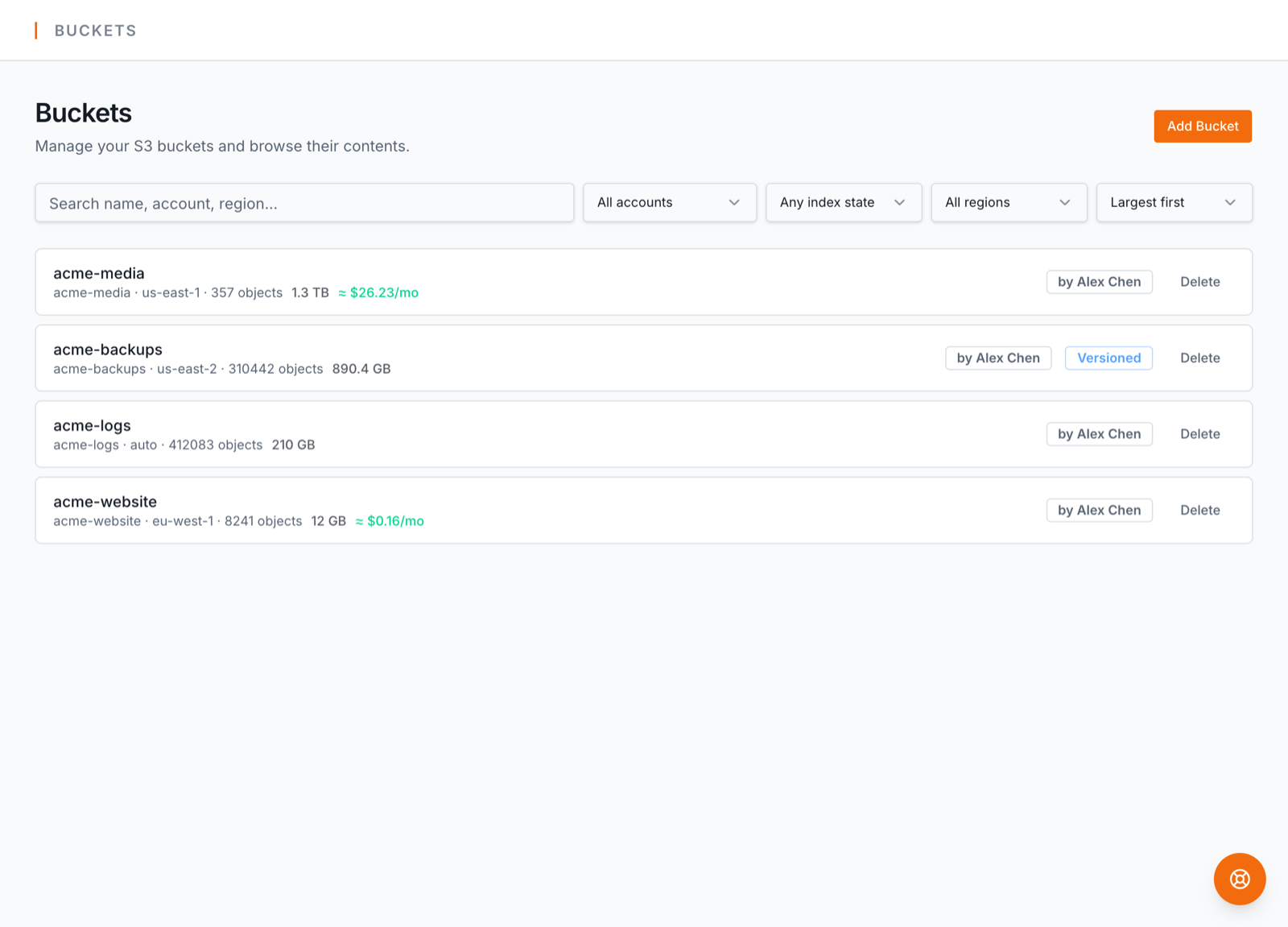
Once a credential is connected, add buckets two ways (a credential is always required first):
- •Discover buckets — the one flow for every existing bucket. BucketPilot lists everything each credential can see for bulk import, and credentials that can't be listed — a Cloudflare R2 API token scoped to specific buckets, Google Cloud Storage (no bucket-listing over the S3 API), or a least-privilege AWS key — appear in the same panel with a connect-by-name form. The bucket name is verified with the credential before it's registered. Region is only asked for on AWS; R2 and GCS are region-less.
- •Create Bucket — provision a brand-new empty bucket in the provider.
Troubleshooting connection errors
- •
security token invalidor an AssumeRoleAccessDenied— the role or stack was usually deleted or the credential went stale. Re-run the one-click flow from the Credentials page, or re-enter your keys. - •"Bucket … was not found" when connecting by name — the exact bucket name doesn't exist under that credential (or it's in a different region, or the credential can't reach it). The message says which; connect-by-name verifies before registering anything.
- •"no longer exists on the storage provider" on upload — the bucket was deleted outside BucketPilot after being connected. Remove it here, then re-add or recreate it.
- •"BucketPilot can't … — this connection doesn't allow it" naming an
s3:action — the connection is fine; it simply predates the feature you pressed. Do not re-run the one-click flow from scratch, which would make a second connection: update the one you have. - •"this bucket's own policy blocks it" — different problem, different console. An explicit Deny in the bucket's policy overrides whatever the connection is granted, so no credential change fixes it; it has to be removed on the bucket, under Permissions → Bucket policy.