The download you didn't need
Somebody asks whether the right banner is in the campaign folder. You open the bucket, find a file called hero-final-v3.jpg, and the only way to know what is in it is to download it, find it in your Downloads folder, open it, and then delete it again. Multiply by every "is this the right one?" in a week.
So we built the obvious thing: click a file and look at it, right where it sits in the bucket.
What opens
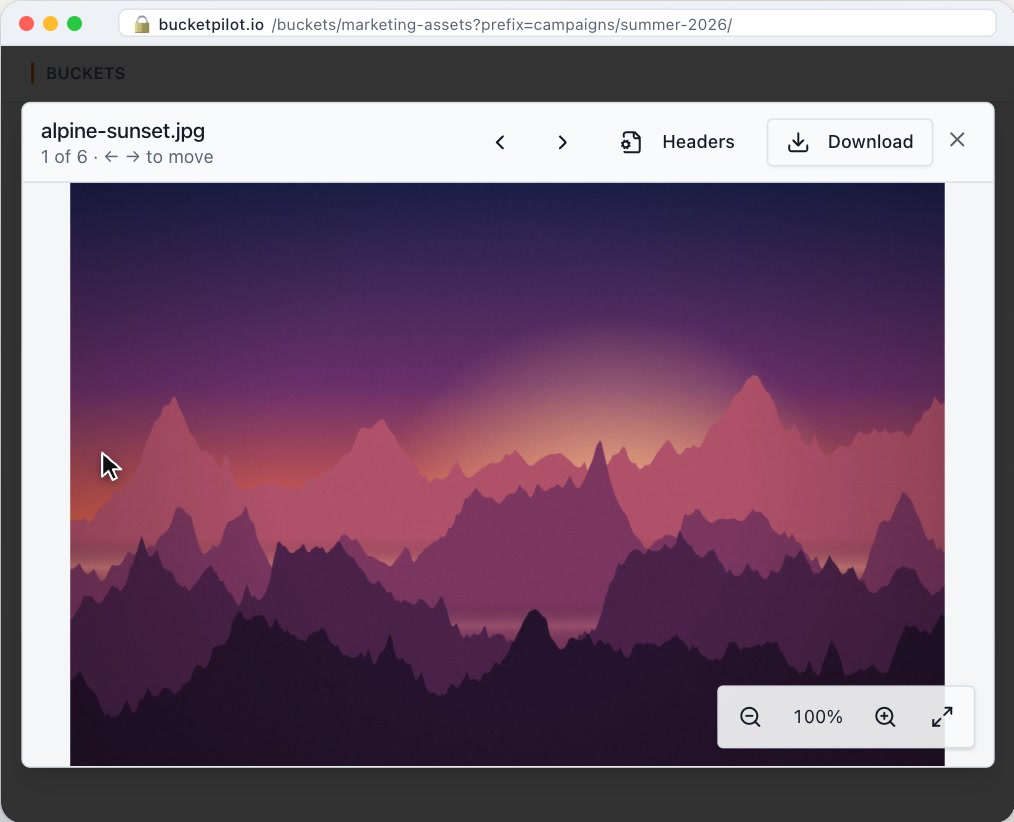
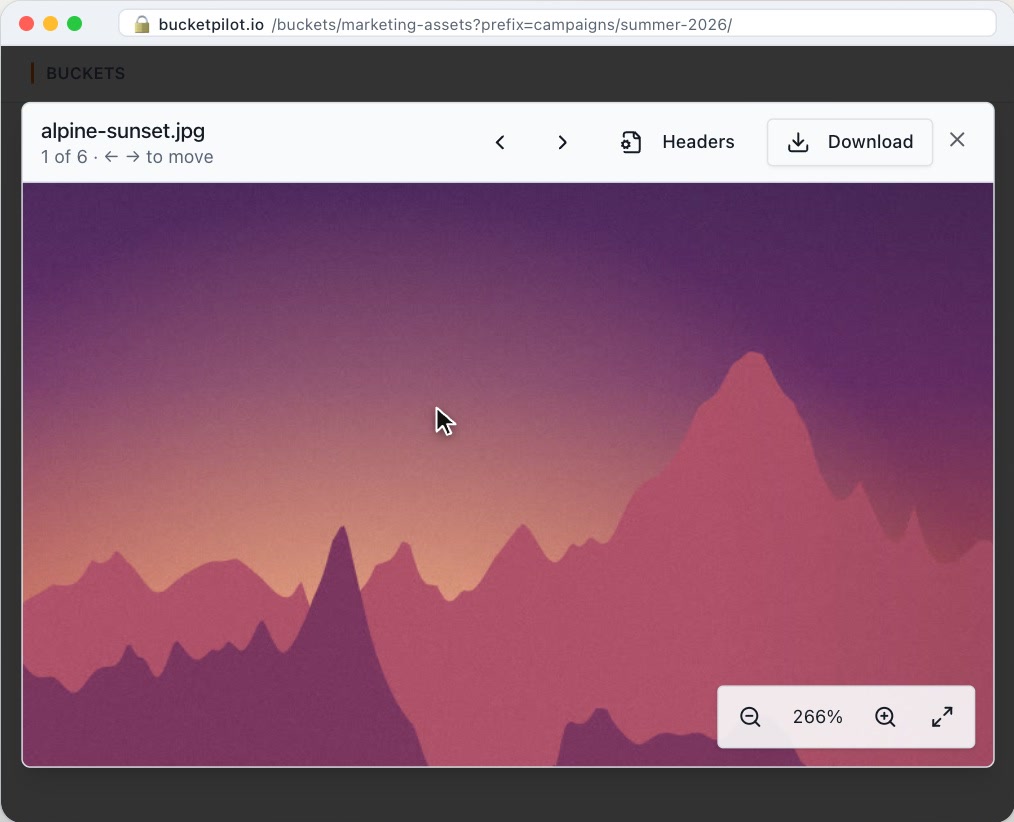
- •Images — JPEG, PNG, WebP, GIF, AVIF, SVG and more. Zoom with the wheel or the buttons around the point you are looking at, drag to pan, double-click to jump in.
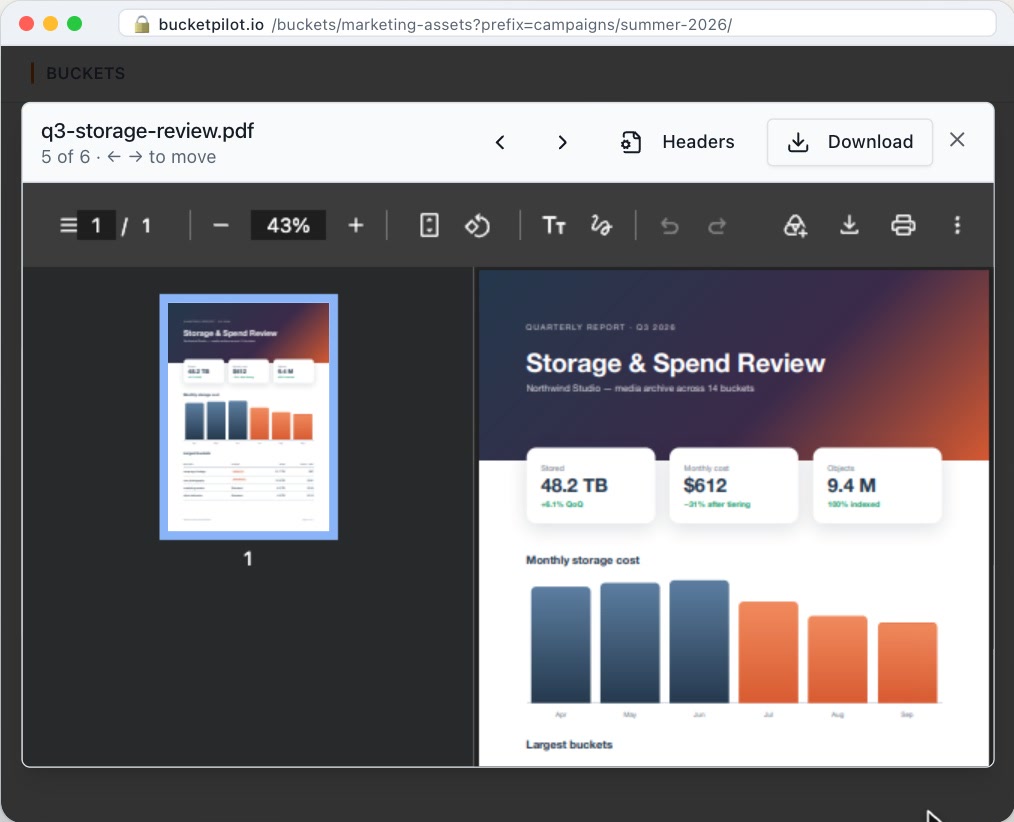
- •PDFs — in the browser's full viewer, with pages, search and zoom.
- •Video and audio — MP4, WebM, MOV, MP3, WAV and the rest stream at any size, so a long clip starts playing without being downloaded first.
- •Text — CSV, logs, JSON, YAML, Markdown and source code, as plain text.
Press ← and → to walk through the folder, file after file, without closing anything. It is the fastest way we know to check a folder of exports or a shoot's selects.
Straight from your storage
The preview does not proxy your files. BucketPilot signs a short-lived link (15 minutes) and your browser reads the file directly from your own bucket, the same way a download would — so nothing passes through our servers, and it needs no CORS rule on the bucket. Folder permissions apply as they do everywhere else: if you are not allowed to download a file, you cannot preview it either.
Two choices keep it safe. The type a file is shown as comes from its name, from a fixed list — so web pages, SVG source and scripts are always shown as text, never run in the page. And there are sensible limits: text up to 2 MB, images up to 50 MB, PDFs up to 200 MB. Archived files (Glacier and Deep Archive) have to be restored first, and the preview says so.
The bug it finds for you
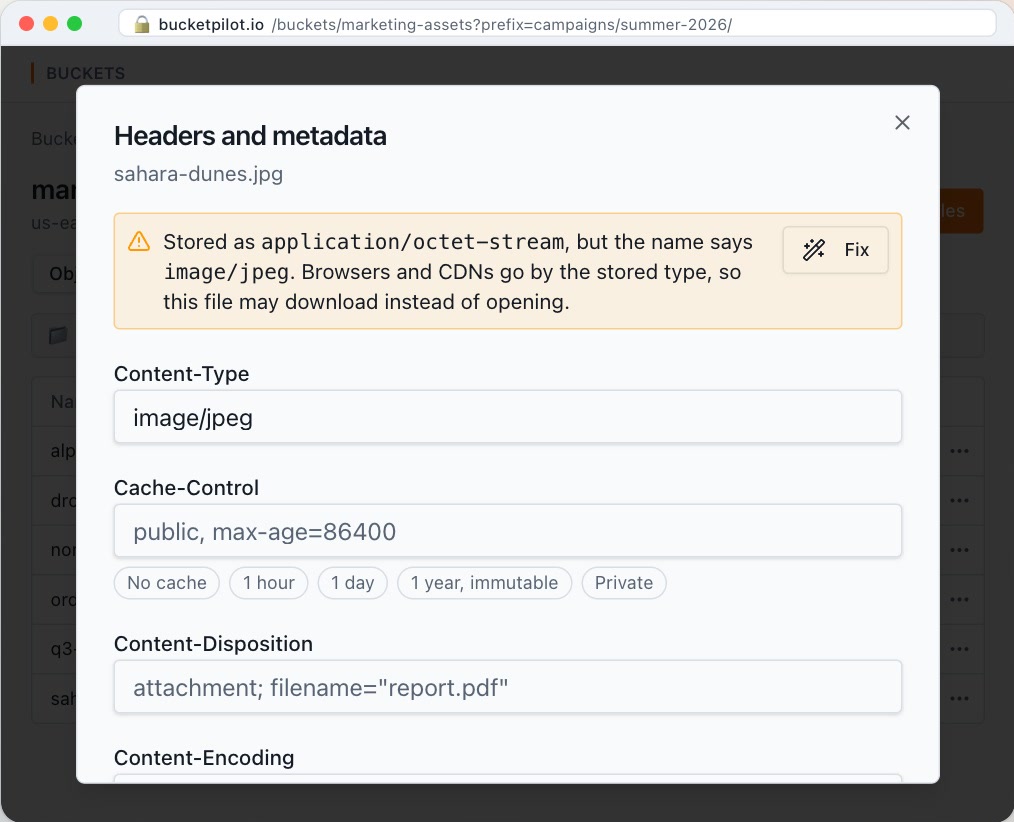
Taking the type from the name means a file uploaded with the wrong Content-Type still previews. But a wrong Content-Type is a real problem: browsers and CDNs go by the stored type, not the name, so a photo stored as application/octet-stream downloads instead of opening when a customer clicks it on your website.
So the preview checks what is actually stored, and when it does not match the name, it says so.
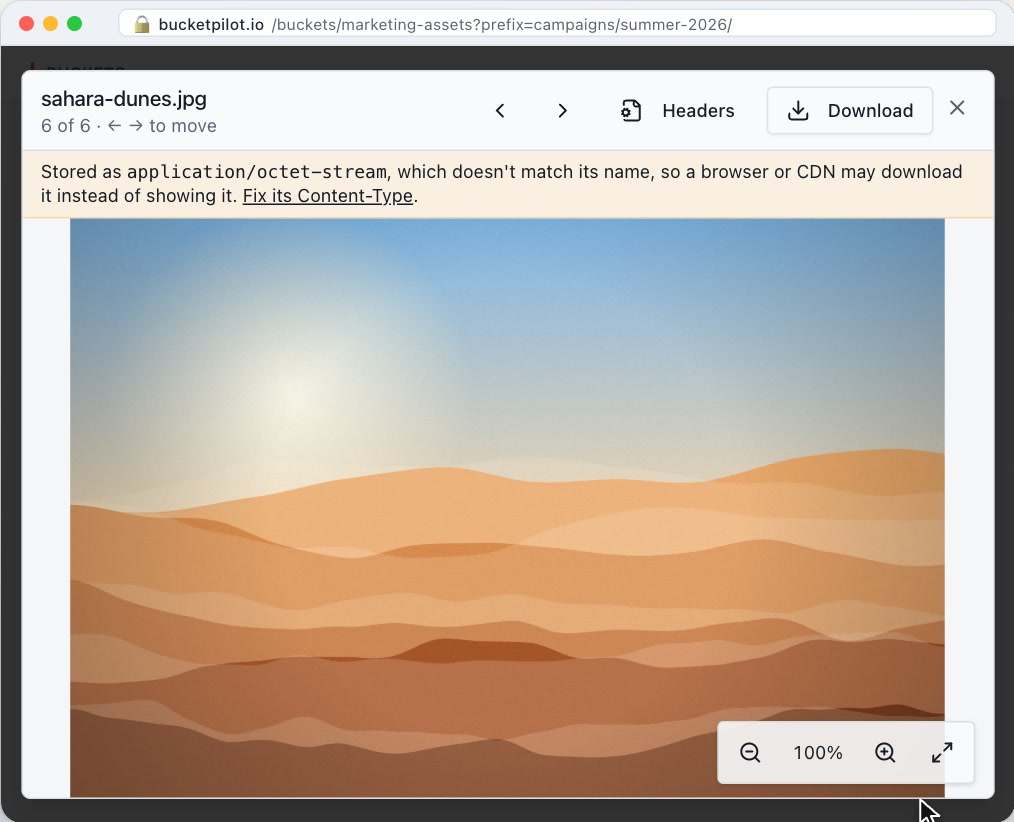
One click opens the file's headers with the right type already suggested. Save, and the file is fixed — only the header changes; its encryption, storage class, tags and any Object Lock settings are kept. Whole folders can be fixed at once, too. Headers and metadata covers the details.
Try it
Preview is live for every plan, on Amazon S3, S3-compatible storage and the servers you connect to BucketPilot. Open any bucket and click a file name.
It is part of a larger set of everyday file work — headers, metadata and per-job bandwidth limits — that people used to need a desktop client for. If you are weighing that choice, BucketPilot vs S3 Browser puts the two side by side.
Also on the blog
Run the numbers on your own buckets
Full Business access for 14 days. No card. Connect an account in seconds.